Importing STL Files into Tinkercad for Mash-Ups and Remixes in Tinkercad

Updated My Journal
I got asked to make something. It would require nothing but mixing a bunch of things together, then gluing magnets to the finished product. I agreed to this remarkably easy job, thinking that the work part would be only a matter of minutes.
I struggled getting STL files from Thingiverse to Tinkercad, and want to share what I learned. I suspect there’s a better way, an easier way, but this is what I stumbled into.
First, I downloaded the Thingiverse files. So far, so good. However, every time I went to open them, they opened in Bambu, my 3D printing software. I wanted to open them in Tinkercad. A minor annoyance, but nothing I couldn’t deal with. I went to Tinkercad, went to the Import File section, and nada.
Oh, I could see my importable STL files in the Downloads portion, but there was no sign of the MTG deck box I had downloaded. I checked the downloads folder, and the folder containing the deckbox files was still there. I then went back to Tinkercad’s Import Files section and there was still no sign of the folder with the deckbox files in it. After a couple few back-and-forths I realized that for some reason the folder wasn’t going to show up in the Import File section no matter what I did. Hmm.
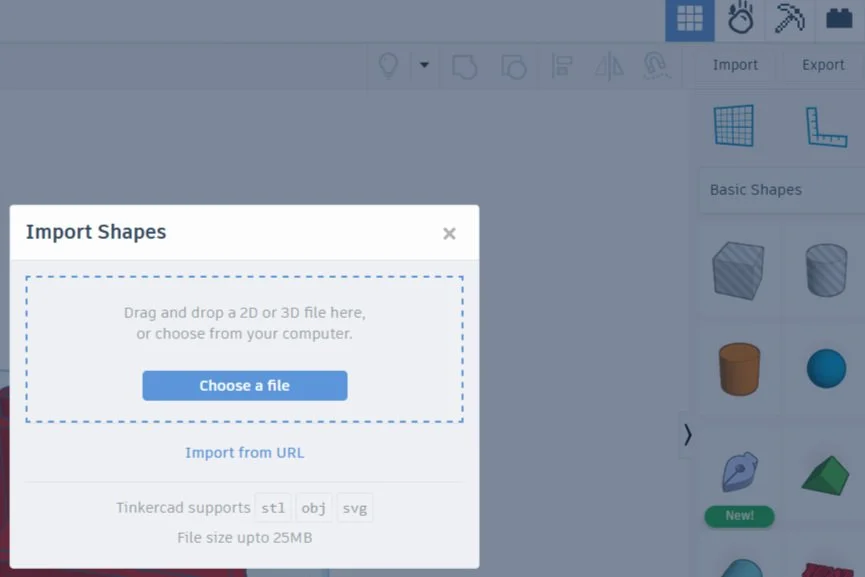
Importing Shapes in Tinkercad
Choose a File lets you select STL files from your PC
I finally ended up moving a copy of one of the STL files from its folder to the Downloads folder, and the Tinkercad software could see it from there. So that problem was solved.
I did the same process for the project’s lid.
Then I asked for an explanation from someone who has more technical expertise because I couldn’t believe that the best solution was to inefficiently duplicate files to another part of the system.
I did, in fact, go the long way ‘round, all that I needed to do was to extract a ZIP file and work with that. I feel like I knew that already. Apparently it’s not bad to just copy a single file though, if one only needs one or two files, as was the case here. I also learned that the files were invisible because I needed to select ‘All Files’ instead of ‘All Supported Types’ when using the Import function on Tinkercad. I still couldn’t use the STL files straight from the ZIP file though, as Tinkercad doesn’t support doing that.
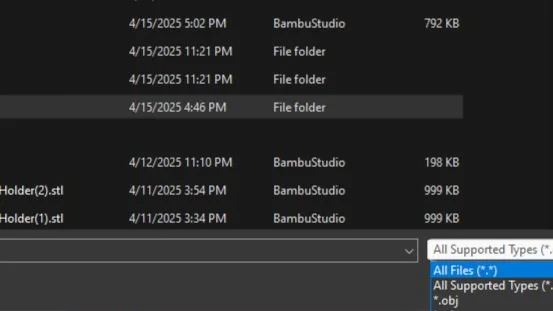
All Files vs All Supported Types
Today I Learned that ZIP Files are Unsupported!!
So far, I’ve got the blueprints for a gorgeous MTG Commander deck box. A custom text sounds like just the thing to dial it up to eleven!!!
With my newly acquired knowledge, downloading a font was a snap. I created a folder just for fancy fonts and unzipped it into that. From there, it was super easy to import select letters and add them to the design.
Adding the font was as simple as stringing the letters together and aligning them horizontally, combining them into a single long shape, narrowing it to fit the box, shrinking it so that it had a nice look, flattening it so that the text protruded only 2 mm, then rotating it and sticking it on. While aligning the text was slightly time-consuming, the rest of the steps were done in only slightly more time than it took to type them.
I opted for print speed and detail over sturdiness, trusting in the strength of the relatively thick plastic walls. That means I printed the pieces empty side up, saving a significant amount of the nice filament that was used to make the final product, which is currently being printed.
This project was worthwhile because it taught me some things about ZIP files, including the fact that many apps can’t just pull a single portion from them unless they are opened first, but the computer can work with some of those same files if they are copied outside of the folder. I learned that ‘all supported types’ doesn’t mean ‘all files’, which is not exactly intuitive.
I also learned that models I download will always open in Bambu and not Tinkercad because in Windows, a file can be opened by a program but not by a website. If I want to work on them I need to go straight to Tinkercad and import them from there.